Set the billing and payment details of your organisation, and check what its instances cost.
Billing applies to the organisation, not to each instance. Compute, storage, and network use across every instance in the organisation roll up into one monthly invoice. Charges follow what you provision and what you use, rather than a flat licence fee.
SurrealDB invoices you monthly for the usage of the previous month. The cycle runs from the first day of a month to the last, and the invoice arrives by email.
Prices on the website exclude VAT and sales tax. Applicable taxes appear on the invoice. Current rates are on the pricing page.
Only an organisation Owner can change billing and payment details. An Owner or an Admin can view invoices. See Members and roles.
Billing and payment details
Open the organisation in SurrealDB Studio and go to Billing.
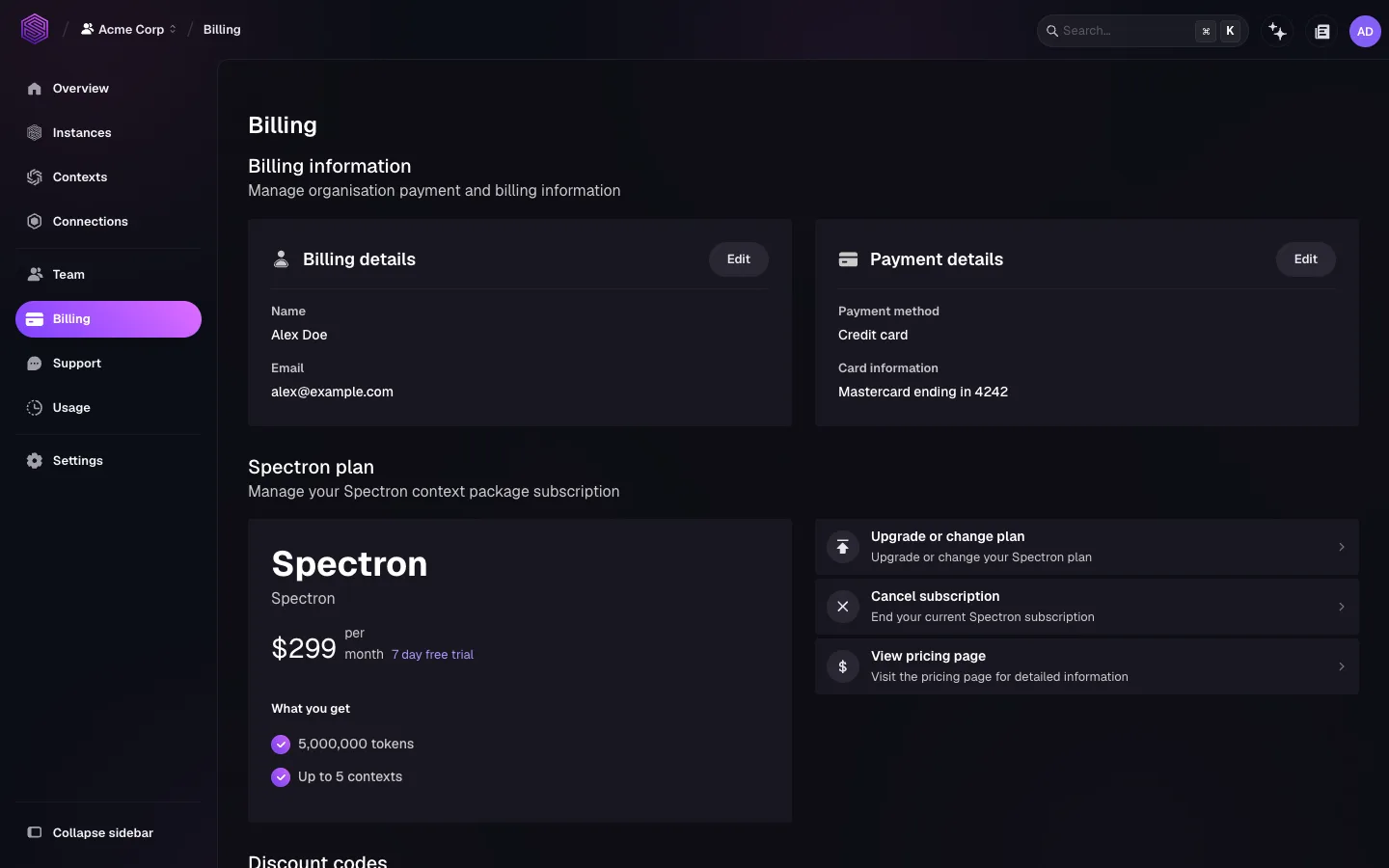
Billing details holds the name and email address that appear on invoices. Payment details holds the payment method. Select Edit on either card to change it.
Use a billing address that your finance team recognises, and an email address that reaches more than one person. An invoice sent to a person who has left the company can go unnoticed until an instance is suspended.
If your organisation has a VAT or tax identification number, enter it in the billing details. The number then appears on every invoice.
Discount codes
Apply a discount code in the Discount codes section of the same page. A code applies to later invoices for the organisation, and not to invoices already issued.
Other subscriptions
The Billing page also holds subscriptions for other SurrealDB products in the organisation, such as SurrealDB Agent Memory context packages. Each subscription has its own plan card, with actions to change it or to cancel it. All subscriptions use the payment method of the organisation, and appear on the same invoice.
Invoices
Billing lists each invoice with its date, its status, and its amount, and links to the document itself.
The organisation keeps its invoices after you delete the instances that generated them. An audit or an expense query can still be answered later.
Usage and spend
Usage shows what produced the charges before the invoice arrives, for the current month or the previous month.
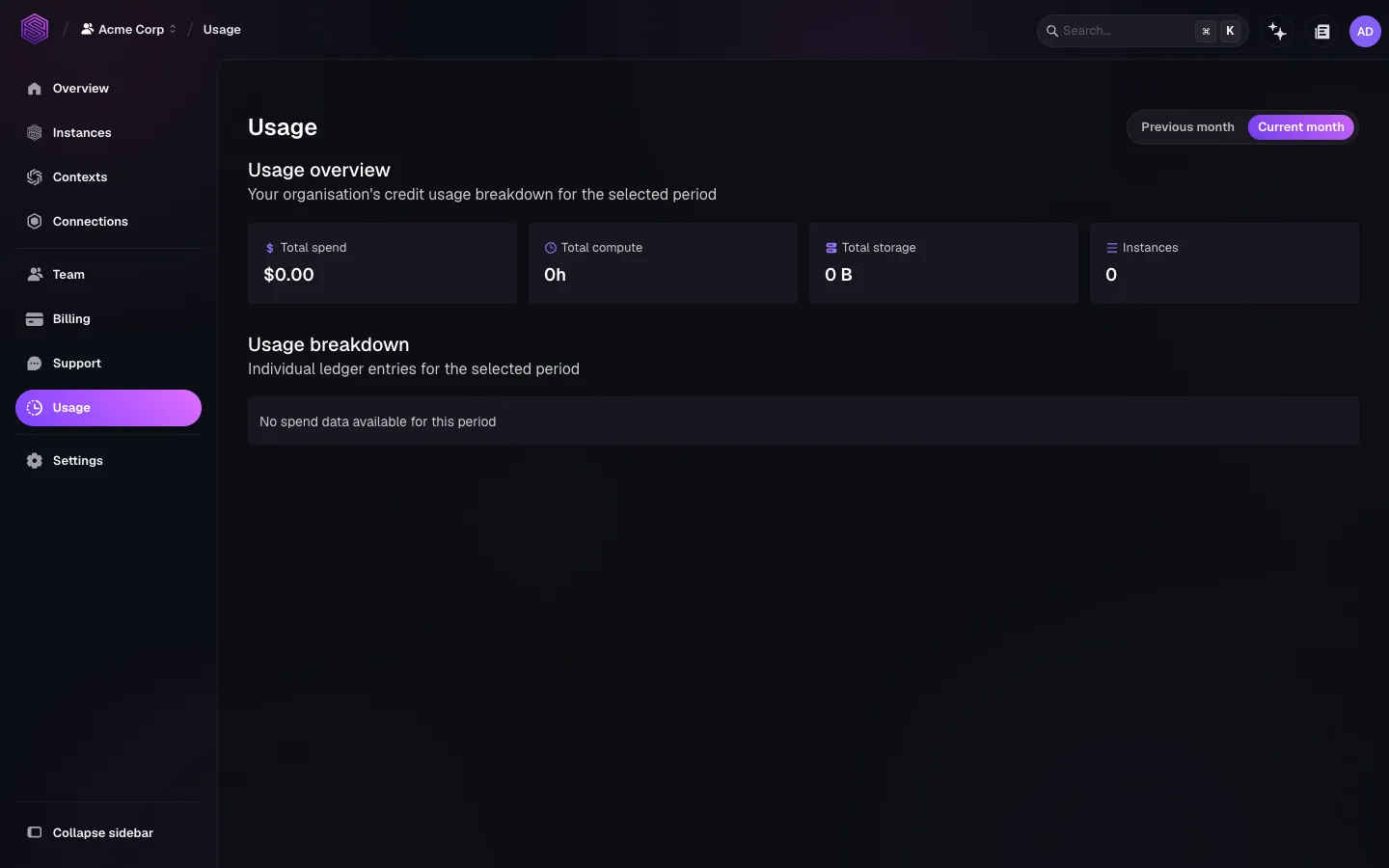
The four cards give the totals: spend, compute hours, storage, and instance count. Usage breakdown lists the ledger entries behind those totals, and attributes each charge to a period and a resource. Read the breakdown when a total is higher than you expect.
Check usage after you resize an instance. A larger instance type is billed on what it provisions. The effect on spend appears at once, rather than at the end of the month. See Scaling.
surreal cloud org spend and surreal cloud org usage print the same figures for a script or an internal cost report. See surreal cloud organisations.
Control what you spend
Pause non-production instances when they are idle. A paused instance keeps its data and stops accruing usage charges.
Right-size an instance rather than over-provision it. Storage can only increase, so a generous first allocation is a permanent cost.
Delete instances you have finished with. Take an export first if the data still matters.
Marketplace subscriptions
If you subscribed through AWS Marketplace or Azure Marketplace, billing runs through your cloud provider account, and invoices and payment details do not appear in Studio:
AWS: invoices are in the AWS Billing and Cost Management console. See AWS Marketplace.
Azure: invoices are in Cost Management + Billing in the Azure portal. See Azure Marketplace.
Billing questions
Email support@surrealdb.com with the details of your query. Write from the address associated with your account, so that the request matches the organisation. The account menu at the top right of SurrealDB Studio shows which address that is.
For technical questions rather than billing questions, see Support.